Overview
BEACONNECT uses user roles to control what policyholders and agency users can see and do within the portal.
Roles help ensure users only have access to the information and tools they need.
Some roles are assigned automatically, while others are managed by a Key Contact for your organization.
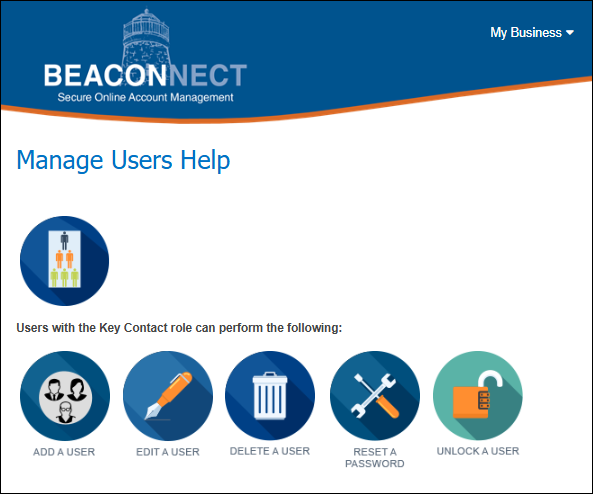
If you are a Key Contact in the BEACONNECT portal, you can manage your users and their roles.
Managing Users and Roles
Only users with the Key Contact role can manage users and roles in BEACONNECT.
To manage users:
- Log into BEACONNECT
- Select Manage Users from the top navigation
- Choose a user to review, update, unlock, or delete their profile
Key Contact
The Key Contact role allows an agent user to:
- Add users
- Update user roles
- Delete users
- Unlock user accounts
Your organization can have more than one Key Contact.
Document Notification Contact
The Document Notification Contact role:
- Receives email notifications when new documents are posted to the Agency Document Center
Financial Contact
The Financial Contact role allows a user to:
- View financial information
- Access Agency Commission Statements
Payroll Contact (Agent)
The Payroll Contact role allows a user to:
- Access TruPay / Pay As You Go
- Upload payroll information
Need Help?
If you are unsure which role you need or cannot access a feature:
- Contact your organization’s Key Contact, or
- Browse the knowledge base at help.beaconmutual.com for additional BEACONNECT support articles or view the Manage Users help page for instructions: