---
title: How to Make a Payment Through the Policyholder Portal
description: Learn how to make an online payment through the Beacon Mutual Policyholder Portal and review recent payment activity.
---
[Skip to content](https://help.beaconmutual.com/how-to-make-a-payment#main-content)
English
Show submenu for translations

Open main navigation
Close main navigation
- English
Show submenu for translations
- [Contact us](https://www.beaconmutual.com/contact/)
[Contact us](https://www.beaconmutual.com/contact/)
How can we help you?
- There are no suggestions because the search field is empty.
1. [Beacon Mutual Knowledge Base](https://help.beaconmutual.com/?hsLang=en)
2. [Payments](https://help.beaconmutual.com/payments?hsLang=en)
# How to Make a Payment Through the Policyholder Portal
**Overview**
You can make a payment through the Beacon Mutual Policyholder Portal by opening your billing account and selecting the online payment option. Online payments are reflected as inbound policy payments through Beacon’s payment processing workflow.
After a payment is processed, it may appear in **Recent Payments** or other billing transaction areas associated with the billing account.
**Instructions**
1. Sign in to the Beacon Mutual Policyholder Portal.
2. Go to **Billing Accounts**.
3. Select the billing account you want to pay.
4. Select **Make a Payment**.
5. Choose **Pay Online**.
6. Enter the payment amount.
7. Accept the Terms of Use.
8. Add a new payment method or select an existing payment method.
9. Review your payment information.
10. Select **Pay** to submit your payment.
**After You Submit a Payment**
Once your payment is submitted, it may appear in **Recent Payments** after processing. The portal refreshes automatically, so there may be a short delay before the payment displays.
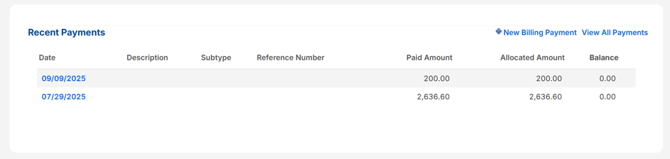
If your company has more than one billing account, make sure you are reviewing the correct account after making a payment. Converted, financed, and PYG policies may have separate billing accounts.
**How Payments Are Applied**
Payments are applied based on the billing account’s open invoice activity. When a payment is less than the total amount due, the system applies the payment to the oldest invoice first. If more than one policy has an amount due on that invoice, the payment may be allocated proportionately based on policy premium.
When a payment is more than the amount due, the system may apply the remaining amount to the next invoice. Payments are applied to fees first, then taxes, assessments, and expense constants when applicable, and then premium.
#### **FAQs**
**Will my payment appear immediately?**
The portal refreshes automatically, so there may be a short delay before your payment appears in Recent Payments.
**Why do I still see a balance after making a payment?**
If your payment was less than the full amount due, the system applies the payment based on open invoice activity. If there are multiple policies or invoices on the billing account, the payment allocation may be split across eligible balances.
**What if I made a payment on the wrong billing account?**
[Contact the Beacon Support Center](https://info.beaconmutual.com/beacon-support-center?hsLang=en) for assistance. If your company has multiple billing accounts, Beacon can help review the account and payment activity.
- [Getting Started](https://help.beaconmutual.com/getting-started?hsLang=en)
- [Portal Help](https://help.beaconmutual.com/portal-help?hsLang=en#main-content)
- [Online Portal](https://help.beaconmutual.com/portal-help?hsLang=en#online-portal)
- [Claims](https://help.beaconmutual.com/claims?hsLang=en#main-content)
- [Claim Reporting](https://help.beaconmutual.com/claims?hsLang=en#claim-reporting)
- [Medical Claims Inquiry](https://help.beaconmutual.com/claims?hsLang=en#medical-claims-inquiry)
- [Claims Payment](https://help.beaconmutual.com/claims?hsLang=en#claims-payment)
- [Payments](https://help.beaconmutual.com/payments?hsLang=en#main-content)
- [Premium Payments](https://help.beaconmutual.com/payments?hsLang=en#premium-payments)
- [Pay As You Go](https://help.beaconmutual.com/pay-as-you-go?hsLang=en)
- [Safety](https://help.beaconmutual.com/safety?hsLang=en#main-content)
- [Beacon Online University](https://help.beaconmutual.com/safety?hsLang=en#beacon-online-university)
- [Loss Prevention](https://help.beaconmutual.com/safety?hsLang=en#loss-prevention)
- [Ergonomics](https://help.beaconmutual.com/ergonomics?hsLang=en)
- [Policy Information](https://help.beaconmutual.com/policy-information?hsLang=en#main-content)
- [ARGO](https://help.beaconmutual.com/policy-information?hsLang=en#argo)
- [Premium Audit](https://help.beaconmutual.com/premium-audit?hsLang=en#main-content)
- [Online Audit](https://help.beaconmutual.com/premium-audit?hsLang=en#online-audit)
- [Payroll](https://help.beaconmutual.com/premium-audit?hsLang=en#payroll)
- [Phone Audit](https://help.beaconmutual.com/premium-audit?hsLang=en#phone-audit)
- [Pay As You Go](https://help.beaconmutual.com/premium-audit?hsLang=en#pay-as-you-go)
- [Temp & Leasing Agencies](https://help.beaconmutual.com/temp-leasing-agencies?hsLang=en#main-content)
- [Safety](https://help.beaconmutual.com/temp-leasing-agencies?hsLang=en#safety)
- [Policy Information](https://help.beaconmutual.com/temp-leasing-agencies?hsLang=en#policy-information)
- [Agent Support](https://help.beaconmutual.com/agent-support?hsLang=en)
- [Agency Quoting Center](https://help.beaconmutual.com/agency-quoting-center?hsLang=en)
- [En Español](https://help.beaconmutual.com/en-espa%C3%B1ol?hsLang=en#main-content)
- [Prevención de Seguridad](https://help.beaconmutual.com/en-espa%C3%B1ol?hsLang=en#prevenci%C3%B3n-de-seguridad)
- [Servicios de Ergonomía](https://help.beaconmutual.com/en-espa%C3%B1ol?hsLang=en#servicios-de-ergonom%C3%ADa)
- [Seminarios y Entrenamientos de Seguridad](https://help.beaconmutual.com/en-espa%C3%B1ol?hsLang=en#seminarios-y-entrenamientos-de-seguridad)
- [Beacon Online University](https://help.beaconmutual.com/en-espa%C3%B1ol?hsLang=en#beacon-online-university)
- [Entrenamiento en Español](https://help.beaconmutual.com/en-espa%C3%B1ol?hsLang=en#entrenamiento-en-espa%C3%B1ol)
- [Online Portal - Portal en Linea](https://help.beaconmutual.com/en-espa%C3%B1ol?hsLang=en#online-portal-portal-en-linea)
- [Preguntas Frecuentes de Reclamos](https://help.beaconmutual.com/en-espa%C3%B1ol?hsLang=en#preguntas-frecuentes-de-reclamos)
[**© 2026 Beacon Mutual Workers’ Compensation Insurance.**](https://www.beaconmutual.com/)All rights reserved. [Terms of Use and Privacy Policy](https://www.beaconmutual.com/terms-privacy-statement/)