---
title: "Key Contact: Steps to Manage Portal Users"
description: Key contacts can learn the steps needed to add and manage users in the Beacon online portal.
---
[Skip to content](https://help.beaconmutual.com/key-contacts-steps-to-manage-portal-users#main-content)
English
Show submenu for translations

Open main navigation
Close main navigation
- English
Show submenu for translations
- [Contact us](https://www.beaconmutual.com/contact/)
[Contact us](https://www.beaconmutual.com/contact/)
How can we help you?
- There are no suggestions because the search field is empty.
1. [Beacon Mutual Knowledge Base](https://help.beaconmutual.com/?hsLang=en)
2. [Portal Help](https://help.beaconmutual.com/portal-help?hsLang=en)
3. [Online Portal](https://help.beaconmutual.com/portal-help?hsLang=en#online-portal)
# Key Contact: Steps to Manage Portal Users
### **Manage Portal Users**
You can update personal information and manage access permissions directly from the online portal if you are a Key Contact.
If you are a designated key contact, you may:
- Create new users
- Edit existing users
- Manage user permissions
---
#### **Steps to Manage Users as a Key Contact (Policyholder Portal)**
Log in to the online portal
Click **Manage Users** in the utility menu
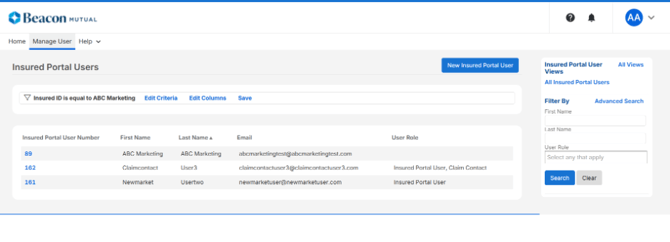
1\. To add a user, click **New Insured Portal User** blue button at the top right and enter the first name, last name, email address, and select the applicable user roles. Click **save.**
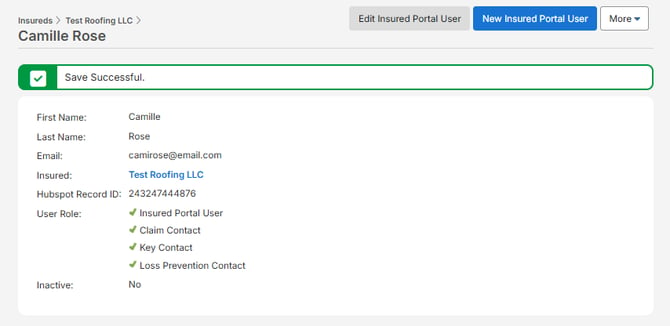
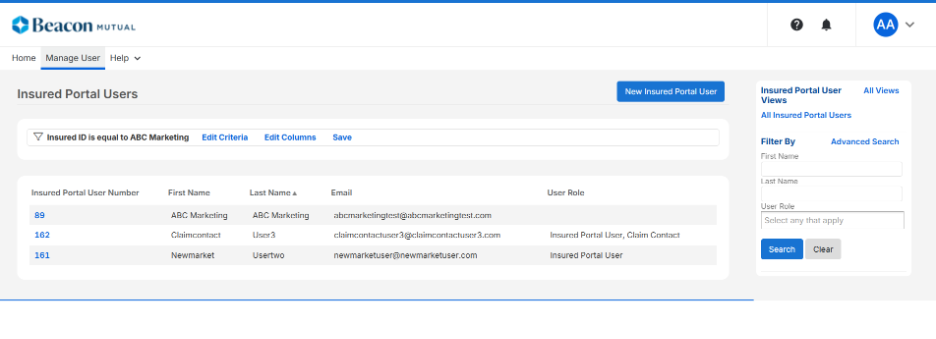
2\. To edit a user, click on the blue **Insured Portal User Number** in the left column. Once the user record is open, click **edit**. Make any applicable changes and click **save.**
 **Note:** Key Contacts will receive confirmation emails when new users are created or edited.
---
### **Manage Agent Portal Users for an Agency**
Key Contacts can manage Agent Portal Users for the agencies they have access to through the Agent Portal. This includes viewing current users, updating user information, and adding new users.
**Before You Begin**
To manage Agent Portal Users, you must be designated as a **Key Contact** and have access to the agency within the Agent Portal.
**View and Manage Agent Portal Users**
1. Log in to the **Agent Portal**.
2. From the top navigation menu, click **Agency Management**.
3. Select **Agencies**.

4. A list of agencies you have access to will appear.
5. Click the **Agency Code** (displayed as a blue link) for the agency you want to manage.

6. The agency details page will open.
7. Scroll down to the **Agency Portal Users** section.

From this section, you can:
- View the list of existing Agent Portal Users.
- Click on an existing user to edit their profile information.
- Add a new Agent Portal User by selecting **+ New Agent User**.
Add a New Agent Portal User
1. Navigate to the **Agency Portal Users** section following the steps above.
2. Click **+ New Agent User**.
3. Enter the required user information.
4. Save your changes.
The new user will be added to the agency's Agent Portal User list. Edit an Existing Agent Portal User
1. Navigate to the **Agency Portal Users** section.
2. Select the user you want to update.
3. Make the necessary changes to their profile information.
4. Save your changes.
The user's updated information will be reflected in the Agent Portal.
**View the video showing all the steps to manage Agency portal users as a Key Contact:**
- [Getting Started](https://help.beaconmutual.com/getting-started?hsLang=en)
- [Portal Help](https://help.beaconmutual.com/portal-help?hsLang=en#main-content)
- [Online Portal](https://help.beaconmutual.com/portal-help?hsLang=en#online-portal)
- [Claims](https://help.beaconmutual.com/claims?hsLang=en#main-content)
- [Claim Reporting](https://help.beaconmutual.com/claims?hsLang=en#claim-reporting)
- [Medical Claims Inquiry](https://help.beaconmutual.com/claims?hsLang=en#medical-claims-inquiry)
- [Claims Payment](https://help.beaconmutual.com/claims?hsLang=en#claims-payment)
- [Payments](https://help.beaconmutual.com/payments?hsLang=en#main-content)
- [Premium Payments](https://help.beaconmutual.com/payments?hsLang=en#premium-payments)
- [Pay As You Go](https://help.beaconmutual.com/pay-as-you-go?hsLang=en)
- [Safety](https://help.beaconmutual.com/safety?hsLang=en#main-content)
- [Beacon Online University](https://help.beaconmutual.com/safety?hsLang=en#beacon-online-university)
- [Loss Prevention](https://help.beaconmutual.com/safety?hsLang=en#loss-prevention)
- [Ergonomics](https://help.beaconmutual.com/ergonomics?hsLang=en)
- [Policy Information](https://help.beaconmutual.com/policy-information?hsLang=en#main-content)
- [ARGO](https://help.beaconmutual.com/policy-information?hsLang=en#argo)
- [Premium Audit](https://help.beaconmutual.com/premium-audit?hsLang=en#main-content)
- [Online Audit](https://help.beaconmutual.com/premium-audit?hsLang=en#online-audit)
- [Payroll](https://help.beaconmutual.com/premium-audit?hsLang=en#payroll)
- [Phone Audit](https://help.beaconmutual.com/premium-audit?hsLang=en#phone-audit)
- [Pay As You Go](https://help.beaconmutual.com/premium-audit?hsLang=en#pay-as-you-go)
- [Temp & Leasing Agencies](https://help.beaconmutual.com/temp-leasing-agencies?hsLang=en#main-content)
- [Safety](https://help.beaconmutual.com/temp-leasing-agencies?hsLang=en#safety)
- [Policy Information](https://help.beaconmutual.com/temp-leasing-agencies?hsLang=en#policy-information)
- [Agent Support](https://help.beaconmutual.com/agent-support?hsLang=en)
- [Agency Quoting Center](https://help.beaconmutual.com/agency-quoting-center?hsLang=en)
- [En Español](https://help.beaconmutual.com/en-espa%C3%B1ol?hsLang=en#main-content)
- [Prevención de Seguridad](https://help.beaconmutual.com/en-espa%C3%B1ol?hsLang=en#prevenci%C3%B3n-de-seguridad)
- [Servicios de Ergonomía](https://help.beaconmutual.com/en-espa%C3%B1ol?hsLang=en#servicios-de-ergonom%C3%ADa)
- [Seminarios y Entrenamientos de Seguridad](https://help.beaconmutual.com/en-espa%C3%B1ol?hsLang=en#seminarios-y-entrenamientos-de-seguridad)
- [Beacon Online University](https://help.beaconmutual.com/en-espa%C3%B1ol?hsLang=en#beacon-online-university)
- [Entrenamiento en Español](https://help.beaconmutual.com/en-espa%C3%B1ol?hsLang=en#entrenamiento-en-espa%C3%B1ol)
- [Online Portal - Portal en Linea](https://help.beaconmutual.com/en-espa%C3%B1ol?hsLang=en#online-portal-portal-en-linea)
- [Preguntas Frecuentes de Reclamos](https://help.beaconmutual.com/en-espa%C3%B1ol?hsLang=en#preguntas-frecuentes-de-reclamos)
[**© 2026 Beacon Mutual Workers’ Compensation Insurance.**](https://www.beaconmutual.com/)All rights reserved. [Terms of Use and Privacy Policy](https://www.beaconmutual.com/terms-privacy-statement/)
```json
{
"@context" : "https://schema.org",
"@type" : "VideoObject",
"contentUrl" : "https://5115678.fs1.hubspotusercontent-na1.net/hubfs/5115678/video_assets/222548576383/inherited/web_optimized.mp4",
"dateModified" : "2026-09-22T21:21:33.455Z",
"duration" : "PT2M1S",
"height" : 912,
"name" : "Managing Users as a Key Contact Video",
"thumbnailUrl" : "https://5115678.fs1.hubspotusercontent-na1.net/hubfs/5115678/Managing%20Users%20as%20a%20Key%20Contact%20Video.mp4/medium.jpg",
"uploadDate" : "2026-09-22T21:21:33.453Z",
"width" : 1920
}
```