
Overview
You can enroll in or manage Auto-Pay online for your Beacon Mutual policy. The steps you follow depend on whether your policy is currently billed through our legacy payment system, PSN, or our new payment system, One Inc. As policies renew and move to our new system powered by Origami, the payment system used for your policy may change.
Start with your invoice
Always follow the payment instructions on your invoice. Your invoice will direct you to the appropriate payment option for your policy.
How do you know what system to use?
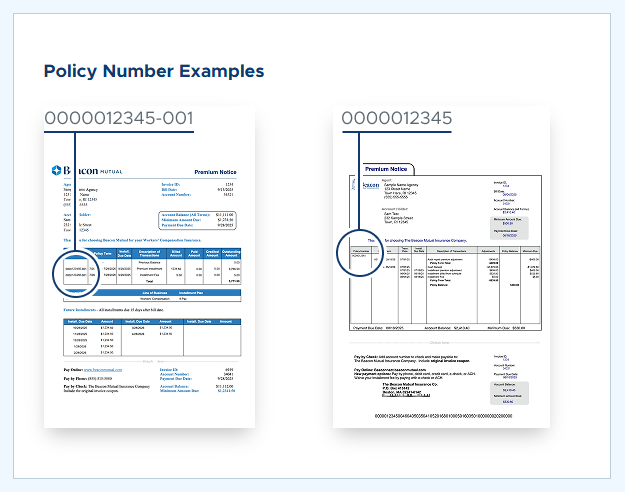
Refer to the image of invoices below:
If your invoice looks like the one on the left and was a new policy written after 9/1/2026 or a renewed policy written after 11/2026, your policy is in our new payment system using One Inc.
If your invoice looks like the one on the right and your policy was written before 9/1/2026 or renewed before 11/1/2026, your policy is in our legacy system using PSN.
Important: If you are currently enrolled in Auto-Pay through PSN and your policy renews or after November 1, 2026, you will need to enroll in Auto-Pay again in One Inc. Your existing PSN Auto-Pay enrollment will not transfer to the new payment system.
Enrolling in AutoPay in our New System (One Inc.)
You can access your Billing Account through the Beacon Mutual Online Portal.
- Log in to the Beacon Mutual Online Portal.
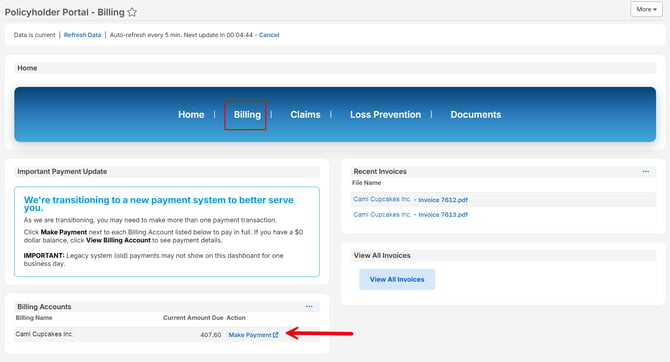
- Select Billing from the main menu.
- Under Billing Accounts, select Make a Payment for the appropriate account.
- If no amount is currently due, you may see View Billing Account instead.
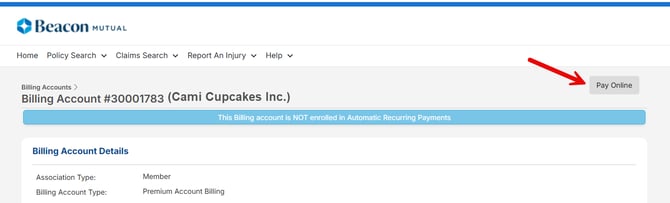
- Select Pay Online at the top right of the screen.
- Enter the amount you want to pay, check the online payment acknowledgement checkbox, and check the "Enroll in Auto-Pay" checkbox. Then click the "Pay Online" button at the bottom.
Important: In order to enroll in autopay in this new system you must make your first payment and then all future payments will be automatic according your billing due date(s).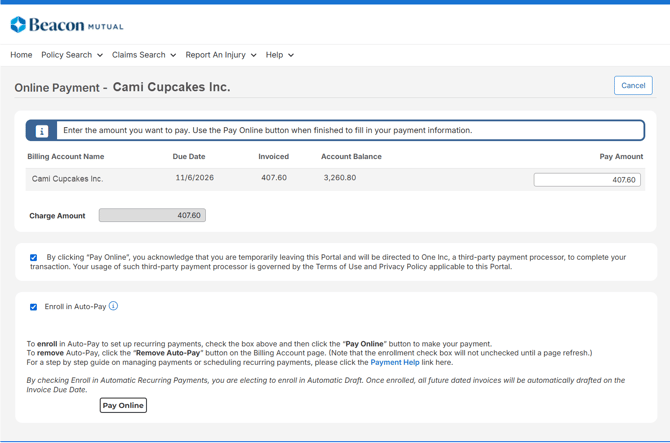
- Follow the prompts to make your payment through One Inc.
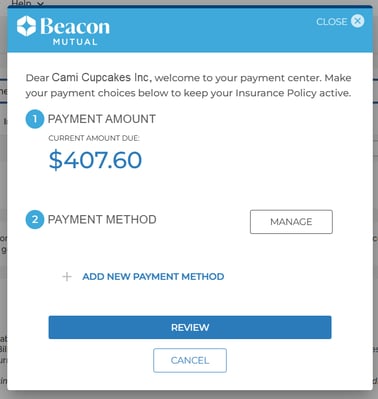
- After your submit your payment, all future payments for this billing account will be automatically paid using the billing account provided on your billing due date.
Enroll in Auto-Pay through PSN (Legacy System)
If your policy is still using Beacon Mutual's legacy payment system, you can continue to make autopay payments through PSN.
You can access your Billing Account through the Beacon Mutual Online Portal.
- Log in to the Beacon Mutual Online Portal.
- Select Billing from the main menu.
- Under Billing Accounts, select Make a Payment for the appropriate account.
- If no amount is currently due, you may see View Billing Account instead.
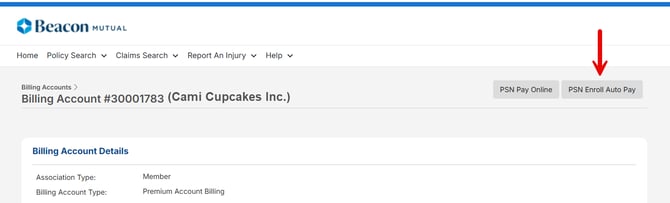
- Select PSN Enroll Auto Pay at the top right of the screen.
- When the auto-pay window appears, click the Add Auto-Pay button
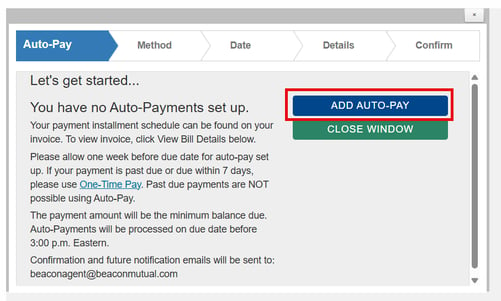
- Follow the prompts to enroll in Auto-Pay for that policy. You may also enroll in or unenroll from Auto-Pay or change your payment method through PSN by calling 833-326-7022.
Frequently Asked Questions
How do I know whether my policy uses PSN or One Inc?
Follow the payment instructions on your invoice. Because policies are moving to the new system as they renew, your payment method may change at renewal.
I'm enrolled in Auto-Pay now. Do I need to do anything when my policy renews?
If your policy renews before 11/1/2026, your policy will remain in the legacy system and your automatic payments will continue to process as normal until your next renewal after 11/1/2026.
If your policy renews after 11/1/2026, you will need to enroll in Auto-Pay again through the new system (One Inc). Your existing PSN Auto-Pay enrollment will not automatically transfer.
Why do I see more than one Billing Account?
During the transition, you may have policies billed through different systems. Be sure to select the Billing Account associated with the policy you want to pay and follow the instructions on that policy's invoice.
What should I do if I'm not sure how to pay?
Refer to your most recent invoice first. It contains the payment instructions applicable to that policy.